
Keep your picture, change its surface. Add a paper texture overlay with fine fibers, visible creases or grain. Compare your paper texture overlay with the original and download the finished image as a free PNG.
Add a paper textureFree PNG export · No sign-in required
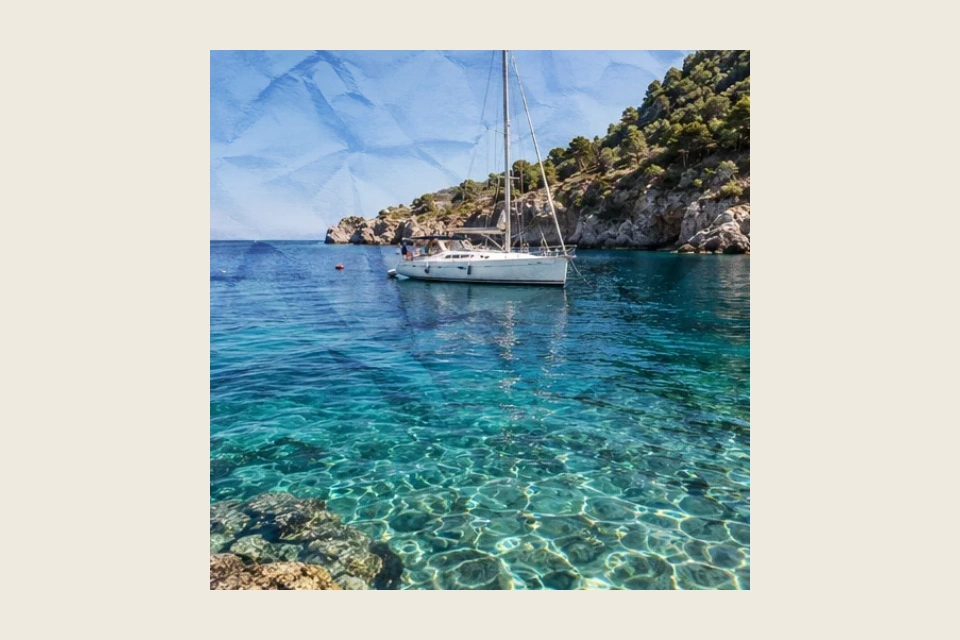
Drag across the photograph to compare
Try another photograph
Your print is ready
Make it with your photoFree PNG · No sign-inBrowse paper texturesThree surfaces. One photograph.
Choose a material and compare the paper texture overlay with the untouched image. These examples use the workbench renderer with real soft-wrinkle, cross-fold and kraft-fiber materials. Compare the same photograph across finishes, or try a portrait and a finished poster. A paper texture overlay changes the surface treatment while keeping the underlying composition flat and recognisable.
Soft wrinkles
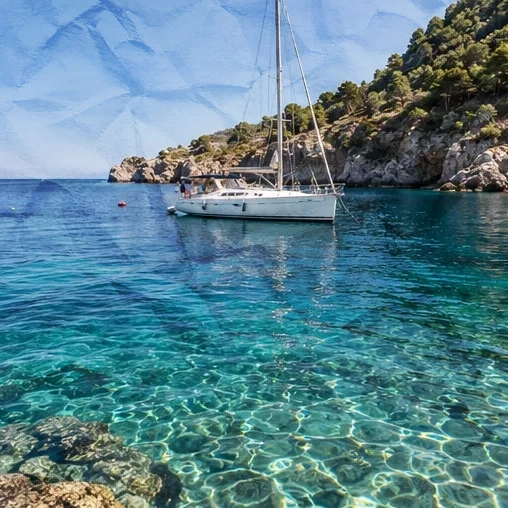
Cross folds

Kraft fibers
Tune your paper texture overlay


Choose the material
Choose from 12 library papers: four fine-grain surfaces, four crumpled papers and four folded papers. The examples here show soft wrinkles, cross folds and kraft fibers. They serve different visual roles. Fibers can suggest a subtle print surface; creases bring a handled-paper character; grain makes the material more noticeable. Your paper texture overlay is based on actual texture samples with controlled processing, not a new AI interpretation of the photo. The picture itself remains the subject.
Separate strength from scale
A paper texture overlay has two useful dimensions: how strongly you see it and how large its marks appear. Strength changes the contribution of the material; texture scale changes the size of its pattern. Tune them independently. A strong paper texture overlay with a small pattern can feel noisy, while a larger crease pattern may need very little strength to be visible. Check areas of both shadow and highlight before settling on a balance.
Compare the blend modes
Multiply and Overlay give your paper texture overlay different relationships with the photograph. Multiply is useful when the material should read through darkening; Overlay can produce a more contrast-oriented treatment. Neither choice is automatically correct for every image. Switch the paper texture overlay blend mode and compare faces, smooth skies and fine lines. A mode that looks convincing on one part of the photo may make another part too heavy.
Keep the composition intact
The paper texture overlay does not add a torn border, separate the image or fold a plane. It is a surface treatment for the original composition. Source transparency is preserved, so a paper texture overlay can also be useful on artwork that already has an alpha channel. Use the original comparison to make sure the effect adds a material impression without hiding detail you want to keep. Export saves the effect, even while you are comparing the original.
A paper texture overlay in context
Photographic prints
A fine paper texture overlay can give a digital photograph the impression of a printed surface. Keep it restrained around skin and gentle gradients, where excessive grain is easy to notice. Match the paper texture overlay to the intended viewing size: a full-screen display and a small social post will not show the same level of fiber detail. Compare the result after scaling it to its actual destination.
Posters and artwork
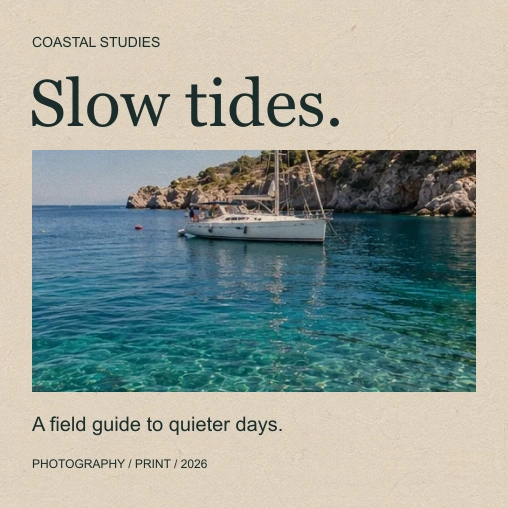
Apply a paper texture overlay to a complete poster image when you want a shared material across typography and illustration. The surface can make independently designed elements feel more coherent without changing their layout. Your paper texture overlay processes the flattened artwork, not separate layers. Check the smallest type after applying it, and reduce strength if thin strokes or low-contrast captions begin to disappear into the texture.
Scrapbook layers
Use a paper texture overlay on an image before arranging it with tape, frames or other paper elements in a larger composition. Choose a treatment that complements those materials instead of trying to reproduce every wrinkle. A paper texture overlay is only one layer of visual character. If the surrounding design already has a strongly patterned background, a simple fiber surface may be more readable than a pronounced crease preset.
Apply a paper texture overlay
- 1
Start with the photo
Open the paper texture overlay workbench and import a supported JPG, PNG or WebP. The example lets you compare materials without committing a file first. For your own paper texture overlay, look for smooth regions as well as detail: open skies and clean colors make it easier to judge how much grain or creasing you are adding. Use a source resolution appropriate to the size of the finished image.
- 2
Choose and compare
Select a paper texture overlay preset, then adjust its strength and scale. Try both blend modes with the same photo before deciding. Use the original comparison regularly; it helps prevent gradual overprocessing as your eye adapts to the material. Open Change paper to browse materials by category, then apply your selection. Library materials keep a centered arrangement while you adjust strength, scale and blend.
- 3
Save a finished PNG
Download the paper texture overlay as a free PNG, without signing in or spending credits. The image includes your chosen blend and material strength. It is ready to place in a design document or use as a finished picture. Your paper texture overlay is flattened into the exported pixels, so save the source photograph separately if you plan to apply a different treatment in another editing session.
Export your paper texture overlay
- PNG
- Free · No sign-in
- 4096 px
- Maximum longest edge
The paper texture overlay produces a static PNG, not an animated surface or a downloadable library of separate texture files. The result retains the original composition and source alpha. A paper texture overlay is applied at the supported output resolution, with proportional scaling when the image exceeds a 4096-pixel longest edge or 12 megapixels.
Your paper texture overlay preview uses the same processing logic as export at a lighter resolution. The PNG contains the selected effect, not the original-comparison view. Keep the original file if you want to use another paper texture overlay later. The download is a flattened image, with no layered PSD, material map or editable blend stack.
Preview and download of a paper texture overlay are free without an account. Inspect the final dimensions and compare important details before saving. A paper texture overlay does not reproduce a folding motion: choose Unfold or Crumple for an animated paper reveal, or the static Fold tool when the geometry of the photo should change.
Before you start
What does a paper texture overlay change?
A paper texture overlay adds the appearance of fibers, wrinkles or grain to a picture. This tool keeps the composition flat and lets you control material strength, pattern scale and blending. It does not add an animated fold or a ripped silhouette. Those are separate effects with different visual goals and different controls in the shared workbench.
Is a paper texture overlay free to download?
Yes. The paper texture overlay preview and PNG download do not require an account or credits. The exported file is the processed picture. For independent material files, visit the linked Paper Texture library and download the original PNGs separately. Video export credit rules belong to the animation modes, not this static PNG tool.
Can I choose between different papers?
Yes. Choose from 12 library materials across fine grain, crumpled paper and folded paper, or keep using the built-in finishes. Each preset responds to the strength, scale and blend controls. Start with a small amount and compare the entire photograph, not only a zoomed detail. The same material can read differently on a portrait, a bright landscape or a dark graphic.
What is the difference between strength and scale?
Strength changes how much the paper texture overlay contributes to the picture. Scale changes the apparent size of the sampled pattern. A small-scale texture may look like fine grain; a larger-scale one may make individual marks more obvious. These controls work together, so adjusting only strength is not always enough to find the right material impression.
Does the image stay transparent?
A paper texture overlay preserves source alpha rather than filling transparent areas with a new background. That makes it useful for some existing cutouts and artwork, as well as ordinary photos. Check the exported PNG over the actual destination color, especially when the source has semitransparent edges. The texture treatment is flattened into the visible picture pixels.
Does the comparison button change my export?
No. Comparing the original helps you evaluate the paper texture overlay, but export still saves the selected effect. Return to the effect preview before downloading if you want a visual reminder of the final treatment. The original comparison is a viewing aid, not a command to remove all material settings from the exported PNG.
Can I use this instead of the Fold tool?
Use a paper texture overlay when the image should stay flat and only its surface should change. The Fold tool changes the geometry of a photo plane around a crease. A wrinkled texture can suggest handled paper, but it cannot replace a visible fold deformation. Choose the effect according to the kind of depth your composition needs.
Will the texture be different every time?
Library materials use a centered, proportional layout that stays stable while you adjust the controls. Below scale 1, material edges are extended with mirrored repeats. The variation control is available for built-in finishes. This lets you compare strength, scale and blend without simultaneously changing the material layout. Preview and export share that choice, so saving the picture does not randomly introduce a new texture.
Make this photo your own.
Choose a paper texture overlay that serves the picture. Compare its surface, keep the detail you care about, and save your paper texture overlay as a free PNG.