
Give a photo a handmade edge, split it into two pieces, or create a blank paper cutout without uploading a photo. Adjust the paper tear effect and download a transparent PNG, free without signing in.
Tear your photoFree PNG export · No sign-in required
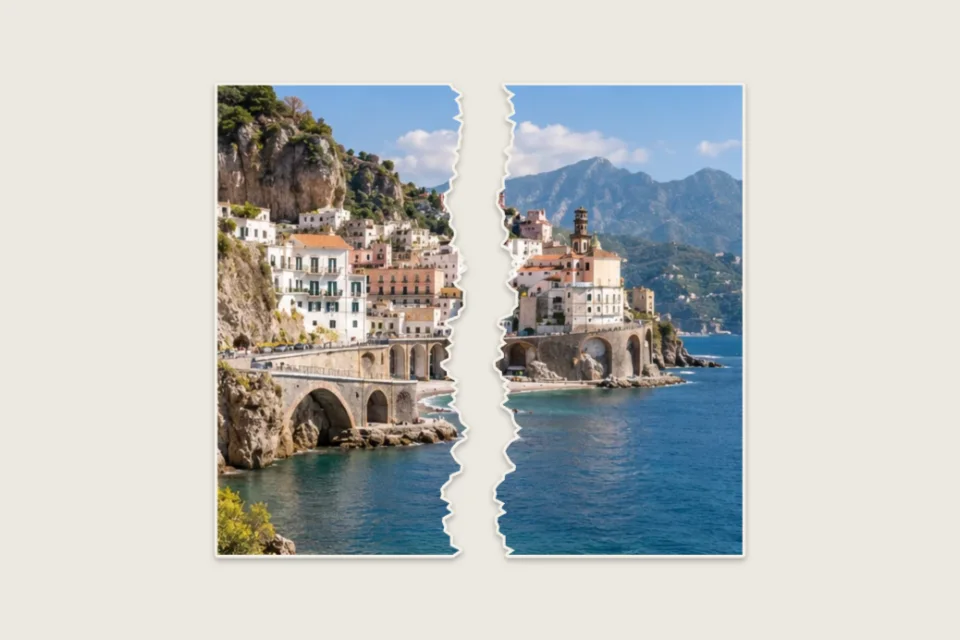
Drag across the photograph to compare
Try another photograph
Your print is ready
Make it with your photoFree PNG · No sign-inOne photo. Two ways to tear.
Compare the original with a real paper tear effect from the workbench. Choose an outer torn edge, a vertical split or a horizontal rip. These examples show the paper tear effect as a still image, with room between the pieces and a subtle white fiber edge.
Split photo
Make the space between the pieces part of the design.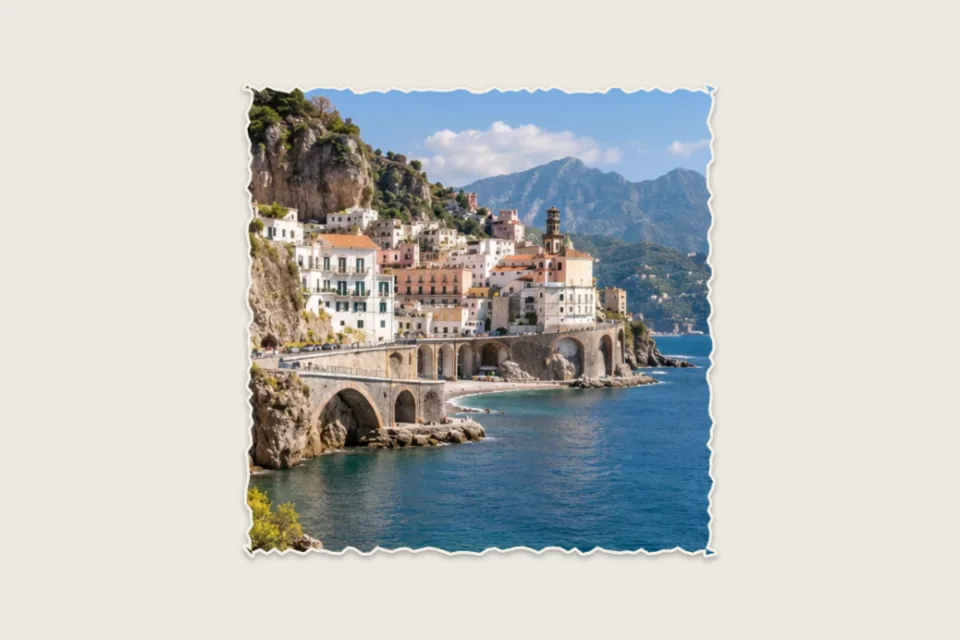
Torn edge
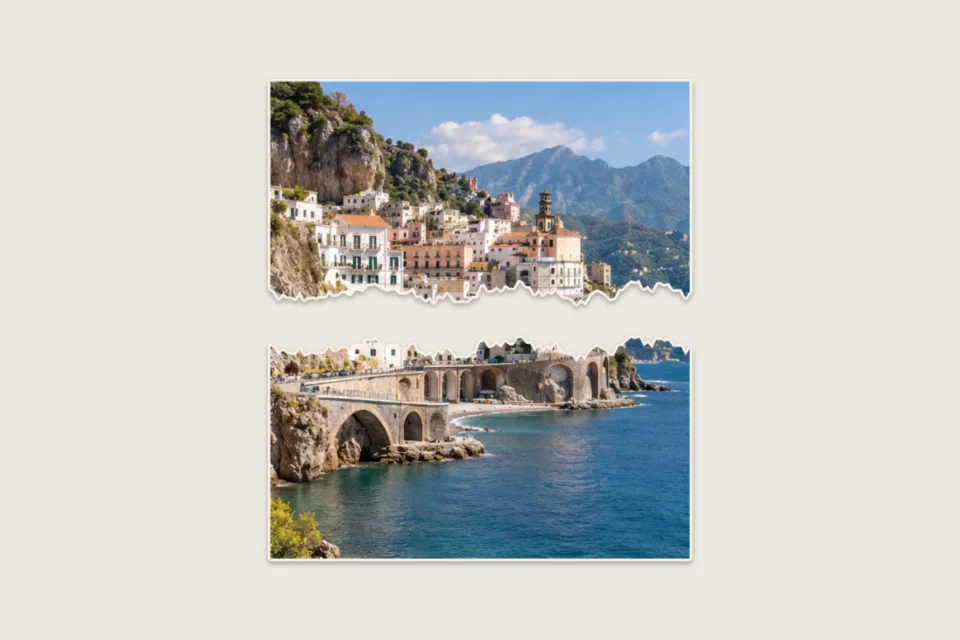
Horizontal rip
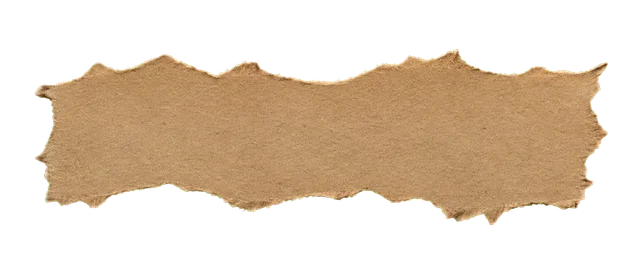
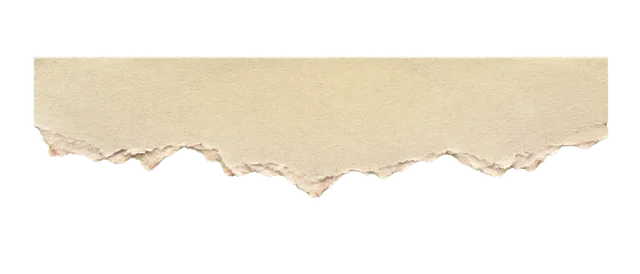
Make a blank paper cutout
Create a sheet, a strip or a single torn edge. Pick the paper color and canvas size, then export a transparent PNG.


Shape your paper tear effect

Edge or split
A paper tear effect can change the outside of a photograph or divide its composition. Torn Edge keeps the picture together and makes its perimeter irregular. Ripped Photo separates it into two pieces along a central path. Choose the paper tear effect that matches the job: a cutout for a collage, or an exposed gap that becomes part of a larger design. Both modes produce a static image.
Control the gap
In the split paper tear effect, choose a vertical or horizontal direction and adjust the distance between the pieces. A small gap feels like a freshly pulled seam; a wider gap gives the background a visible role. The paper tear effect preserves the two sides of the uploaded photo. It does not generate new content to fill the opening, so think about what will appear behind the gap in your final layout.
Keep the edge tactile
Roughness changes the irregularity of the paper tear effect, while the fiber control adds a light paper-colored outline. These are separate decisions: an uneven tear does not have to carry a thick white edge. Start with restrained settings and inspect the border against both a dark and a light surface. A paper tear effect with too much fiber can distract from faces, typography or other details close to the cut.
Repeat the same shape
Your paper tear effect uses a fixed shape seed while you adjust its parameters. Changing the gap or the shadow therefore does not randomly replace the tear. Use the new-shape control when you want another variation. That makes a paper tear effect easier to refine deliberately: settle on the path first, then tune its fibers and depth. The preview and PNG export use the same underlying processing, at their appropriate resolutions.
A paper tear effect for layouts
See how it works
Editorial collages
Use a paper tear effect to interrupt a straight photo grid in a magazine-style composition. Pair one irregular cutout with quieter rectangular images so the contrast remains intentional. The paper tear effect works especially well when it reveals a supporting color or paper texture beneath the photograph. Since the result is a PNG, you can move the finished cutout as a single layer inside your own design application.
Posters and covers
A split paper tear effect can create space for a title or separate two areas of a picture. Add the words in your design editor after exporting; this tool does not add text to the gap automatically. Check the paper tear effect at the final display size, where small fibers may be less visible and a large gap may feel more dramatic than it did in the browser preview.
Presentations and memories
Add a paper tear effect to a travel photo or a personal snapshot when the surrounding layout has a scrapbook character. Transparent corners help the picture sit naturally on a slide or a patterned surface. Keep the paper tear effect subtle for a presentation that already contains charts or dense text. One expressive photo edge can give a page personality without making every element compete for attention.
Make a paper tear effect
- 1
Import and choose
Open the paper tear effect workbench and import one JPG, PNG or WebP. Use the default example if you want to explore before choosing your photo. Select Torn Edge for a single cutout or Ripped Photo for two separated pieces. Before creating a paper tear effect, check where the main subject sits: a central split through a face or an important word may need a different composition or direction.
- 2
Refine the silhouette
Adjust your paper tear effect direction, gap, roughness and paper fiber edge. Try the new-shape button to compare another path, then keep the version that supports your layout. Change the shadow only after the cut feels right. Preview the paper tear effect on transparency or a solid background, and use the original comparison to see whether the edge treatment helps the photograph rather than overpowering it.
- 3
Download and place
Export the paper tear effect as a free PNG without signing in. Choose transparency when you plan to place the cutout over another image; choose a solid background when the complete composition is ready to use. Import your paper tear effect into a design editor or slide deck as an image. PNG preserves transparent space between pieces, so the next application can show whatever you place behind the tear.
Export your paper tear effect
- PNG
- Free · No sign-in
- 4096 px
- Maximum longest edge
The paper tear effect exports a still PNG, not a video transition. Native image dimensions are preserved until the output envelope requires scaling. The longest edge is capped at 4096 pixels and the image at 12 megapixels. A paper tear effect may expand the canvas to accommodate its gap, fibers and shadow.
A transparent paper tear effect keeps alpha around the torn outline and between separated pieces. The checkerboard belongs to the preview and is not printed into the file. Select a solid background if the destination does not handle transparency. Your paper tear effect remains an image layer rather than an editable layered design project.
There is no credit charge or sign-in requirement for a paper tear effect PNG. Review the output dimensions displayed in the workbench before downloading. For an animated reveal, open the separate Unfold mode instead: the paper tear effect here is designed for static layouts, with controls and output appropriate to a cutout.
Before you start
What does a paper tear effect do?
A paper tear effect gives a photo an irregular ripped outline or separates it into two pieces. This tool combines the original picture with a generated tear path, optional light fibers and a shadow. It exports a still PNG that can be used in another design. It does not animate the rip or create footage of hands tearing paper.
Is the PNG download free?
Yes. You can preview and download a paper tear effect PNG without an account or credits. The free output is the static image result. Video animation modes have their own export rules, so do not confuse this PNG tool with paid MP4 exports from the shared workbench. The export button shows the format selected for the current mode.
Can the paper tear effect have a transparent background?
Yes. Choose transparent output for a paper tear effect with alpha around its outline and in the gap between pieces. The checkerboard only indicates transparency in the preview. If you instead choose a solid background, the exported PNG includes that color. Place a transparent export over your real background to check the edge and shadow.
Can I choose where the tear goes?
The split paper tear effect supports horizontal and vertical directions through a generated central path. You can change roughness, the gap and the shape variation. It is not a freehand path editor, and it does not promise precise placement of a cut around a particular object. Prepare your crop or choose another shape when a central cut does not suit the image.
Can I make blank paper without a photo?
Yes. Choose Blank paper in the workbench, then select a sheet, strip or single torn edge. Paper fill and canvas background are separate. Choose transparent output for an alpha PNG; dimensions are shown before export.
Why is the exported canvas bigger?
In photo mode, the paper tear effect needs room for separated pieces, the fiber outline and any shadow. The tool expands its image bounds to avoid cutting those features off. The displayed output dimensions account for that expansion and the supported size limit. A wider gap can therefore increase the final canvas even though the uploaded photograph itself has not changed resolution.
Will changing settings generate a different tear?
Changing a paper tear effect parameter keeps the current shape seed. Use the explicit new-shape control to request a different variation. This keeps a chosen outline stable while you tune its gap, fibers or shadow. Preview and export use the same seed, so downloading does not randomly replace the version you just reviewed in the workbench.
Can I use an image that already has transparency?
You can import ordinary supported image files to make a paper tear effect. Check the result carefully when the source already contains transparent regions, because those empty areas interact with the new cutout. A photo with a complete rectangular background is the clearest starting point for understanding the two tear modes and comparing their edges.
Is this a paper tearing transition?
No. The paper tear effect on this page is a static image tool. Its PNG can become part of a video edit, but the file does not contain timing, motion or two video clips. Choose the separate paper unfolding animation for a moving single-photo reveal, or animate your exported torn pieces later in your own editing software.
Make this photo your own.
Start a paper tear effect with the photo you already have. Refine the outline, keep the useful details, and download a paper tear effect PNG that fits your next composition.